- Log into your ActiveCare user portal and click the Incentives and Rewards tile, and go to the Program Rules area.

2. Hover over the “I” icon, the following information will display for you:
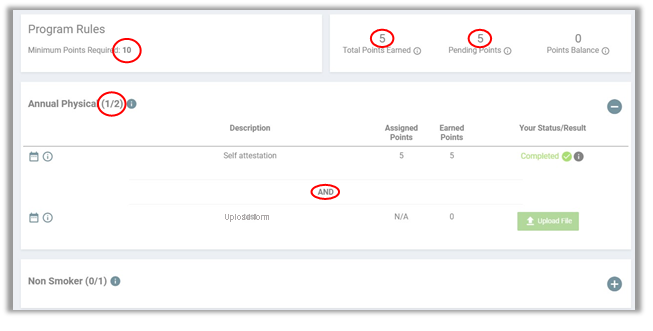
“Total Points Earned” are points that represent the number of points you have earned in the program that can be redeemed once all program requirements are met. Please note, until you have completed the program requirements, these points will not be considered redeemable and will not be reflected in your “Point Balance”.
“Pending Points” are points that are pending until program or opportunity requirements are met, such as completing mandatory opportunities, fulfilling the program minimum points threshold, and completing the number of required criteria for specific opportunities. Once the program requirements have been met, you will see these points reflected in your points balance.
“Points Balance” are points that you can redeem or spend. You will see these points represented in your points bank.
Example: In this screenshot, the member has completed 1 of 2 requirements needed to earn points for their annual physical. This incentive opportunity requires 2 activities (criteria) to be completed to earn points. The points will remain pending until the second activity is completed to reach the minimum points required (10).
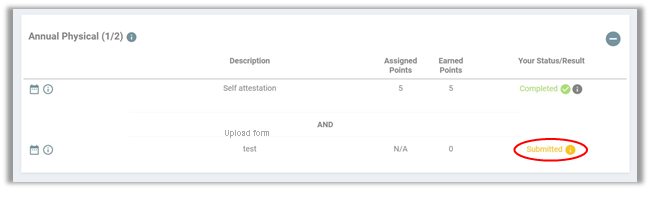
Form uploads: If form uploads are required to earn an incentive, they will switch from “Submitted” status to “Completed” status upon completion of review.
Was this article helpful?
That’s Great!
Thank you for your feedback
Sorry! We couldn't be helpful
Thank you for your feedback
Feedback sent
We appreciate your effort and will try to fix the article