Submitting Your Wellness Forms
The wellness forms are completed by a member’s doctor during a wellness exam visit. It is important that the form be submitted as a single document to include both pages.
Sometimes, a member may need to delete and resubmit a form, for example:
If only one page was mistakenly submitted
If the wrong document was uploaded
Below are the steps to remove an incorrectly submitted form and upload the correct one.
Deleting and Resubmitting Wellness Forms
Log in to your ActiveCare dashboard.
Click the menu icon at the top left.
Select My Wellness Tools.
Click Document Storage.
Click I&R Upload.
Locate the incorrectly submitted file and select Actions > Open > Delete to remove it.
Click Add New File at the top right to upload the correct form.

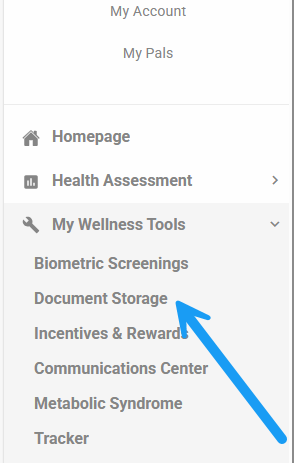

Once the correct form is uploaded, you will be able to submit it successfully.
Uploading Your Wellness Forms as a Single Document
The wellness form must be submitted as one multi-page document. You can create a single file depending on your device and app:
On Android (Google Drive app):
Open the Google Drive app.
Tap the “+” button and select Scan.
Take a picture of the front page.
Tap “+” again to scan the back page.
Save the document as a single multi-page PDF.
On iPhone (iOS Notes app):
Open the Notes app.
Tap the clip icon at the bottom and select Scan Documents.
Scan the front page, then scan the back page.
Save the document as a single multi-page PDF.
Once saved, upload the single PDF to your ActiveCare account for submission.
Was this article helpful?
That’s Great!
Thank you for your feedback
Sorry! We couldn't be helpful
Thank you for your feedback
Feedback sent
We appreciate your effort and will try to fix the article